Setting up Additional 2FA for activedirectory.schomp.com
Enroll for Additional 2FA on Active Directory
Made by Conor Dennis with Scribe
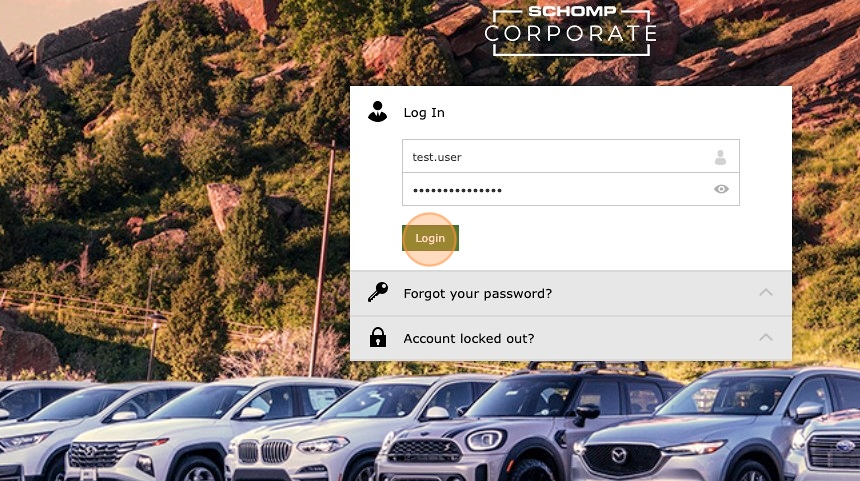
1. Navigate to https://activedirectory.schomp.com/authorization.do
2. Log In
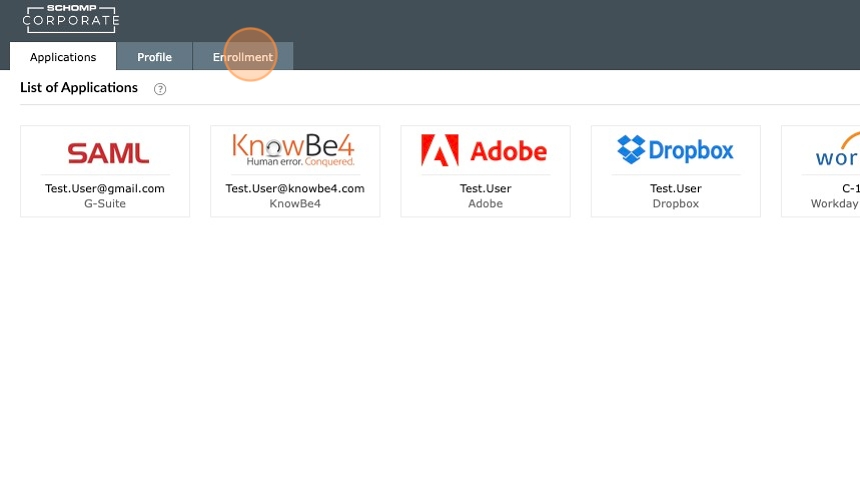
3. Click "Enrollment"
4. Download the Google Authenticator App on your phone and scan the QR Code.
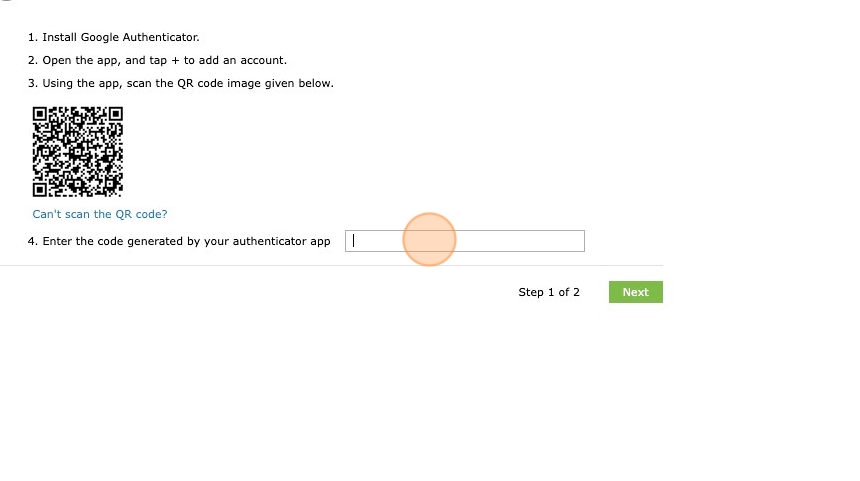
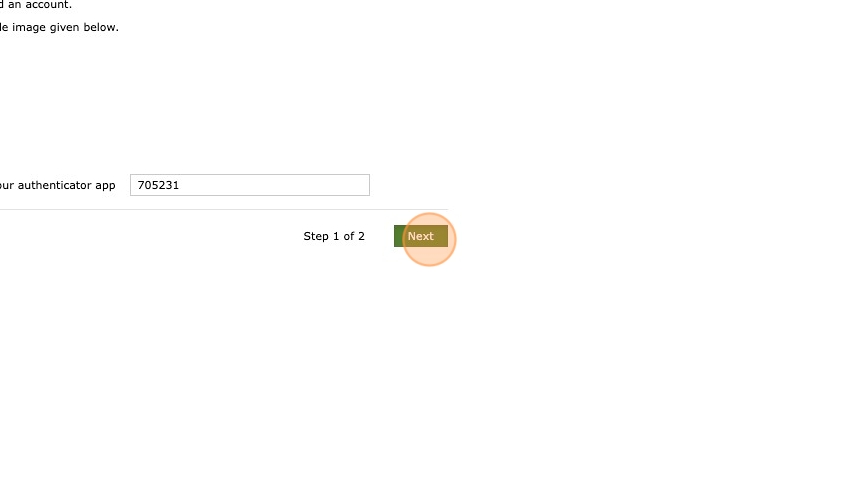
5. Enter the code that comes up into the box. Click "Next"
6. Google Authenticator should now be set up. From here, you can now use the Google Authenticator to sign in to the website and you computer. You do not need to set up Push Notification , but you can if you would like. Here is a guide on how to do that.
8. Signin in with Google Authenticator
Log in to Activedirectory.schomp.com
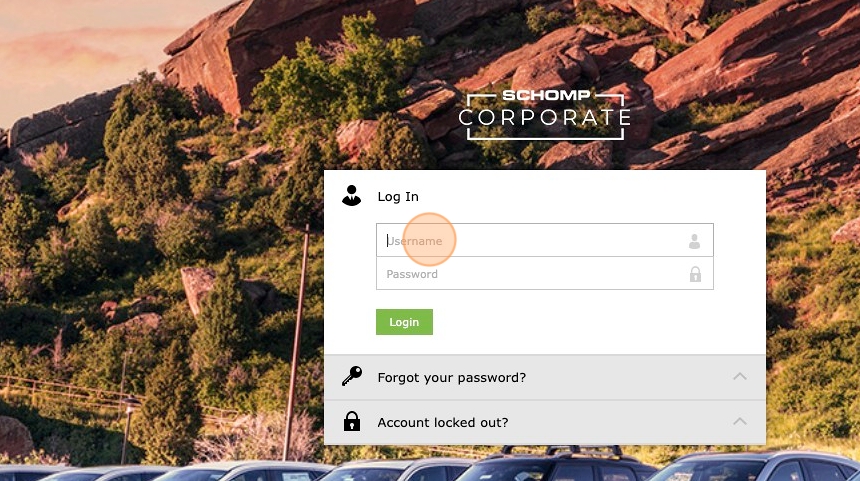
9. Click here.
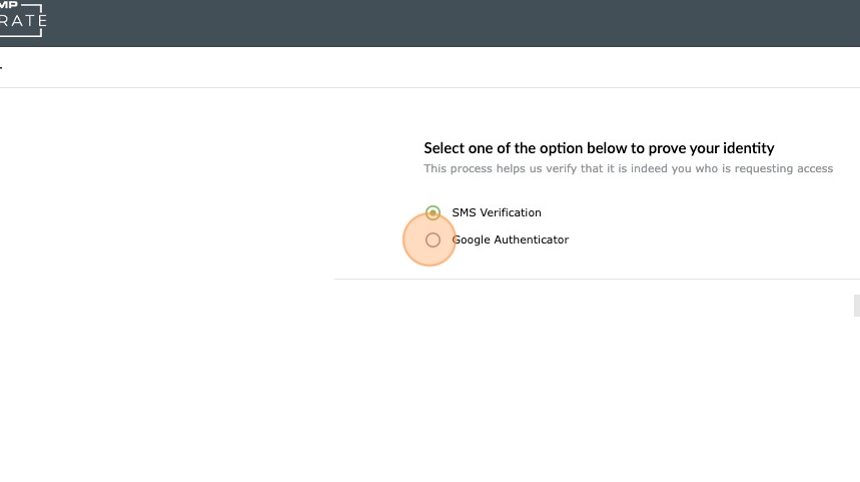
10. Click "Continue"
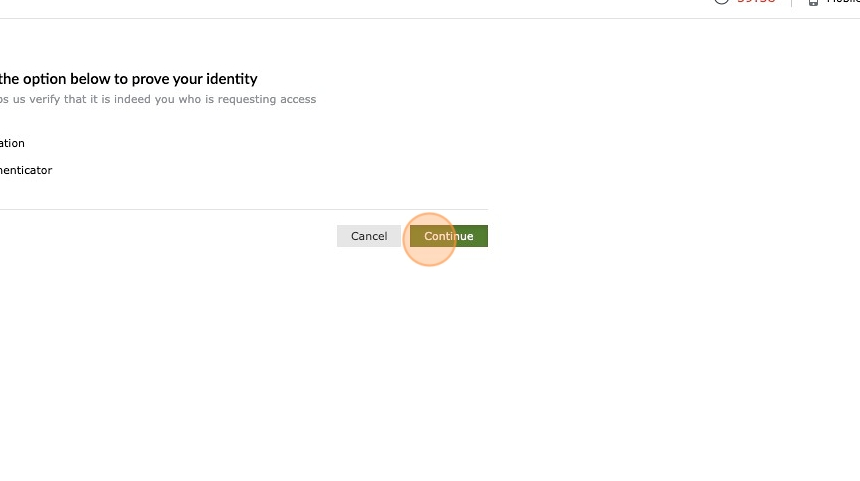
11. Type the Google Code in and click continue

Related Articles
Activedirectory.schomp.com for Workday or other database logins
Two Factor VPN authentication
The ManageEngine ADSelfServicePlus is what will be used to send Push Notifications for VPN Sign In. NOTE: Once set up, this method of 2FA can also be used for computer sign in and Activedirectory.schomp.com log in. Download the ADSelfServicePlus App ...How to find your employee ID Number
How to find your employee ID Number Made by with Scribe 1. Navigate to https://activedirectory.schomp.com/webclient/index.html?#/selfservice/iam-applications 2. Click this button. 3. Click "Click to Login" 4. Click here. 5. In parenthesis is your ...Using a Backup Code for AD Self Service Sign in
If you don't have access to your 2FA methods, you can reach out to IT and we can provide a backup code for you to use. Once you have your Backup Code, log into https://activedirectory.schomp.com and select one of your authentication methods. Click on ...Set up Google Authenticator for Workday Sign-in
The Google Authenticator App can be used as another option for 2FA instead of SMS. Android: https://play.google.com/store/apps/details?id=com.google.android.apps.authenticator2&hl=en_US&pli=1 iPhone: ...